The essentials
Manual data work eats your days
Right now, jobber integrations are not connecting your systems. Your crew is in Jobber. Your accounting is in Xero or QuickBooks. Your calendar is Google Calendar. Your messages are in Slack. But they do not talk to each other.
Every time something happens in Jobber, an invoice sent, a job finished, a payment received, someone types it into the next system. You hope they did not make a typo. You move on. Every person on your team is doing small versions of this all day. It does not feel like a process problem. It feels like work. That is exactly what makes it dangerous.
The fix is not a new tool. It is jobber integrations that let your systems talk without a human in the middle.
What integrations actually do
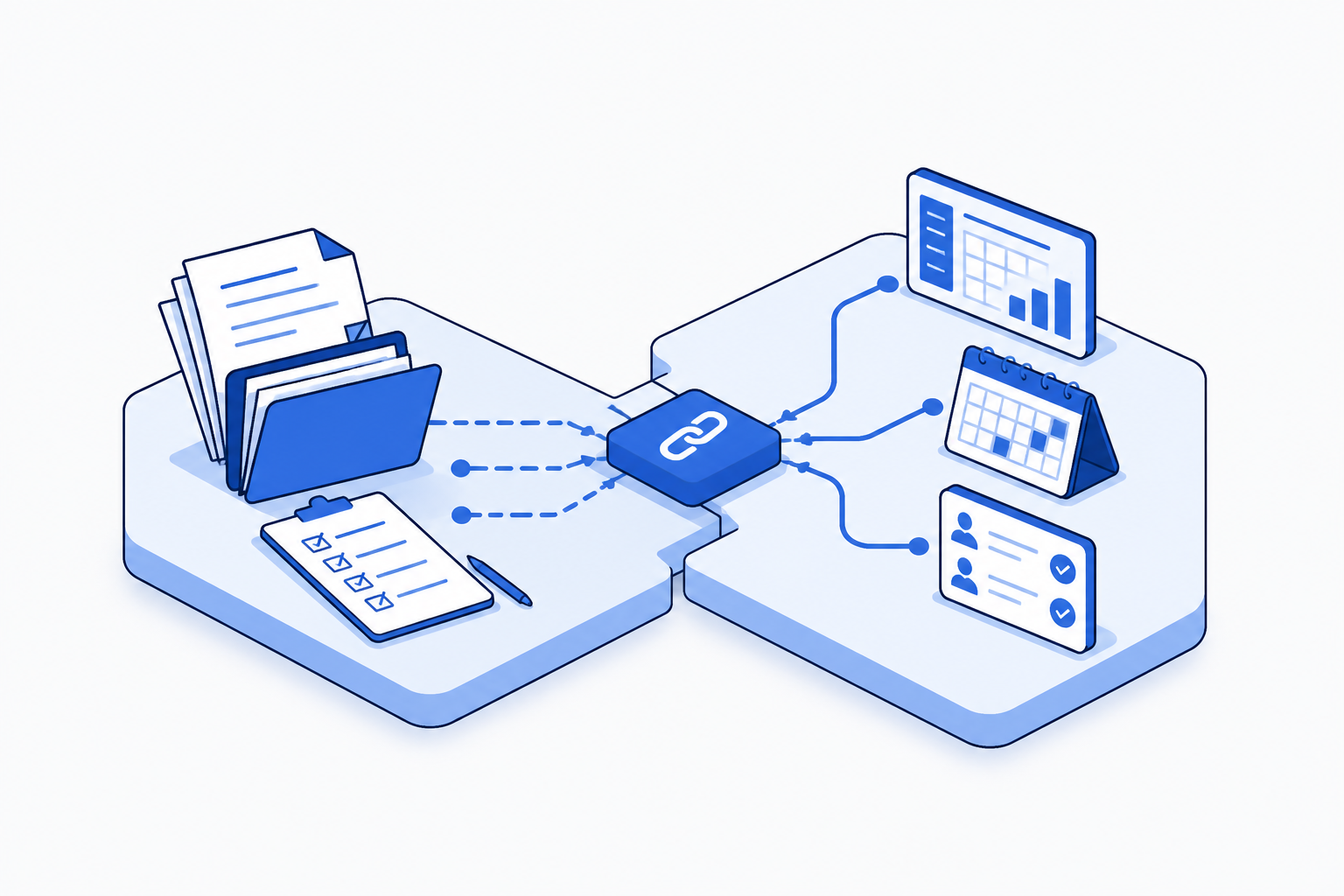
An integration pushes data from Jobber into another system automatically. An invoice you create in Jobber lands in your accounting software with the right customer, the right amount, the right date. No re-entry. No typo. No duplicate record.
Your team's schedule syncs to Google Calendar. They check their phone like they always do and they see the truth, address, time, customer name, in the one place they already look every morning.
Job updates, customer messages, and payment alerts flow into Slack. Your crew and office know what is happening without opening another app. Not every integration saves time. The ones that matter are the ones that stop you from entering the same information twice.
The three integrations that handle 80% of the work
Most ops managers at trades firms connect Jobber to three core systems first. Accounting software moves invoices and payments automatically. A shared calendar keeps your crew on the same page. Communication tools bring alerts into the channels where your team already talks. These three solve about 80 percent of the integration problem. Everything after that is optimisation.
How each integration changes your operation
An accounting software integration takes every invoice Jobber creates and pushes it into your books without anyone typing. You reconcile faster. You know your cash position without waiting for a spreadsheet. More important, you stop the invisible bleed of re-entry errors where a typo on a customer name means your invoice does not match your receipt.
A calendar integration means your crew checks their phone and sees the truth. No separate Jobber check. No confusion about start time or address. The schedule is there in the one place they already look every morning.
A Slack integration brings Jobber alerts into the channels where your team actually talks. Job completed. Invoice sent. Customer message waiting. These come as notifications, not buried emails. Your team responds faster and so does your customer.
- Invoice created in Jobber, typed into accounting software
- Schedule in Jobber, team checks job details twice a day
- Job updates sent via email, team does not see them
- Customer payment received, manually logged in two places
- Report built by pulling data from multiple systems
- Invoice syncs to accounting software automatically
- Team sees schedule in Google Calendar with full job details
- Job updates flow to Slack where the team checks first
- Payment recorded in both Jobber and accounting instantly
- Report data pulls from a single source of truth
Building your integration stack
Start with the move that costs you the most time right now. If it is copying invoices, connect Jobber to Xero or QuickBooks Online. If it is the team asking where they are supposed to be, connect to Google Calendar. If it is information getting lost in email, connect to Slack. You do not need every integration on the first day. You need the one that stops the worst bleed.
Most integrations are managed directly in Jobber's app directory. Log in, find the software you want to connect, and follow the setup. For integrations Jobber does not list natively, check whether your accounting software or calendar has a Jobber connector on its side. Many do.
Test the integration on a small data set before flipping it on for production. Push a test invoice through. Watch it appear in Xero. Make sure the amounts and customer names land correctly. Once you see it working, scale it.
The math on what you actually save
A 12-person trades firm invoices about 180 times a month. Each invoice that lands in Jobber needs to be checked and entered into accounting at roughly 18 minutes of data entry per invoice if you get it right, double-checking names and amounts.
Automated cost is spot-check review only (3 min per batch of 30). Adjusted rates for bookkeeper vs. ops manager.
Why integrations fail and how to prevent it
Integration failure is rarely the tool's fault. It is almost always the setup. Most people connect two systems and never test whether the data coming through is the shape it needs to be. A dollar amount comes through as text instead of a number. A date arrives in the wrong format. A customer name has an extra space and does not match the existing record, so the system creates a duplicate instead of updating.
Before you assume an integration is broken, spend an hour testing it on real data. Send a test invoice. Watch it land in your accounting software. Check the amounts, the customer name, the due date. If something is off, fix the mapping before it runs at scale. Integrations that fail in production do not fail because the systems cannot talk. They fail because no one checked whether they were saying the right thing.
Still tracking invoices between Jobber and your accounting software? See how integration changes that.
Map this automationAutomate this process
This template covers the full workflow, so your team can move from manual effort to a working automation.
Frequently asked questions
Yes. Jobber connects natively to QuickBooks Online and pushes invoices and customer information automatically. Setup takes about 20 minutes. Go to your Jobber app settings, find QuickBooks Online, and authenticate. Invoices will sync after that. Test on a few jobs first to make sure customer names and amounts match what you expect.
Explore more Appliance repair businesses automations
See how other businesses map it:
Liam spent eleven years running a 22-person building contractor before selling the business. He now writes about operations and automation for trades, construction, and field service teams, with a particular interest in the processes that quietly eat a business from the inside out.